Well, well, well, if it isn’t the last month of the year, where my wallet breathes a sigh of relief upon surviving the month-long sales across every retailer back in November, only to find itself suffocating under a chokehold with the holidays right around the corner. I don’t know about you, but I think it’s time for me to start budgeting based on math rather than vibes. If you feel the same, then this post is for you! Let’s talk about money management and what we can do to increase our peace of mind around our finances for the year to come.
Table of Content
Finance 101 – Budgeting
It goes without saying that a budget is important, but in case you need more convincing to start one – Keeping a budget can help you understand what exactly is happening to your money, so you know:
- Where it all went
- If you’re overspending
- How to optimize if you’re dissatisfied with your spending habits
With that baseline knowledge, you can set concrete financial goals, small or big, like:
- Buying that item you’ve been eyeing with confidence, knowing you won’t compromise your financial health for short-term gains
- Building an emergency fund, some call it fuck-you money
- Saving for your first pet/car/house/[insert big ticketed item]
- Saving for someone else, your partner/child/elderly parents/pets/[insert whomever]
- Investing for retirement or early retirement for that sweet sweet freedom
Even if you are not interested in any of the items listed above, just knowing you can spend your hard-earned money completely guilt-free after accounting for the priorities in your life is a priceless feeling. I say this because I carry a lot of guilt when it comes to spending. In my mind, I can always save more, but the goalpost of more keeps moving, leaving me constantly stressed I’m not doing enough; keeping a budget stops my spirals and forces me to focus on facts with concrete action plans.
How to Start a Budget – A Guide
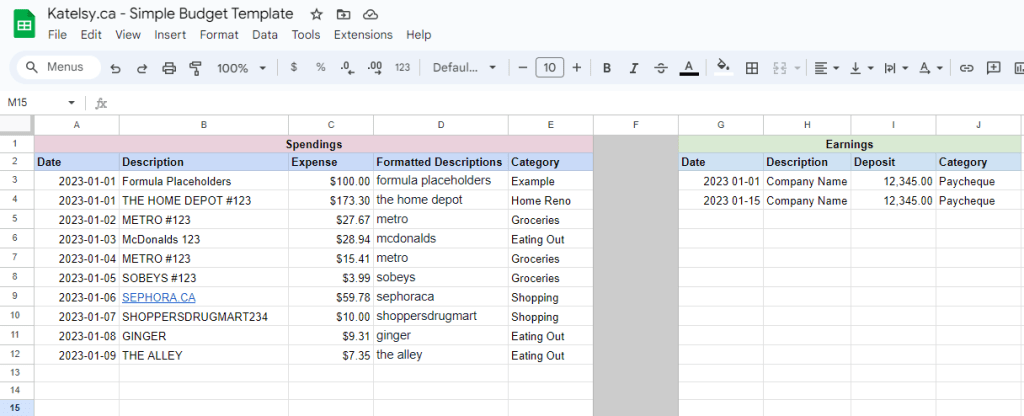
You don’t need anything complicated; it can be as easy as tracking spending and earnings with simple math on a notepad, or you can outsource this task to an expense-tracking app. I like to do my tracking using Excel/google sheet. If you have no idea where to start, here is a Google sheet budget template I created that you can copy to your Google Drive. I’ll walk you through how to fill it out and how you can use tools like pivot tables to learn more about your spending habits.
*Disclaimer: I’m no Excel/google sheet wizard. I created this template because it works for my budgeting needs, so it’s by no means the best method. I encourage you to try different templates to find what works for you!
Step 1: Compiling Your Spending Transactions
With the help of online banking, transactions can be transferred to the budget template with a couple of maneuvers.
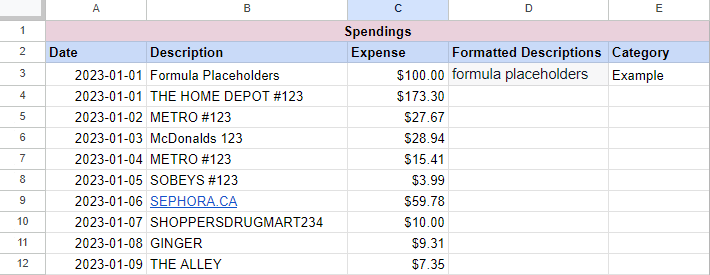
Highlight the transactions from your online banking record, including the date and dollar amount, and paste them to cell A3 on the Transactions tab. You may need to reformat to ensure the columns match nicely like below, or you can use a Chrome extension called “CopyTables” to pick and choose which cell you’d like to highlight to copy and paste. The tool isn’t mandatory, but it saves you the extra reformatting step on the template.
Once everything is nicely formatted, your spending side on the Transaction tab will look like this.
Step 2: Formatted Descriptions
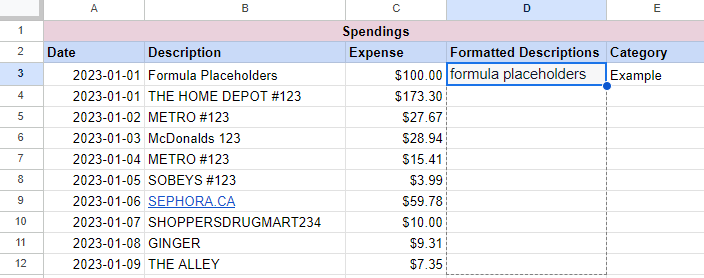
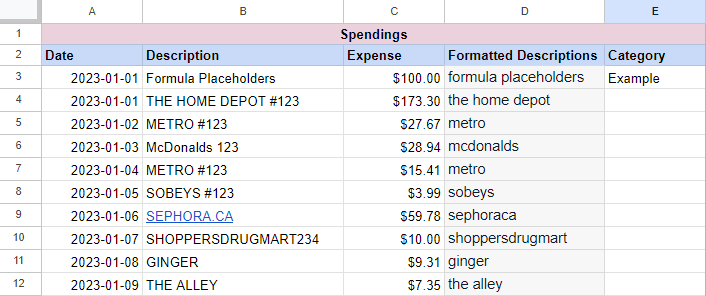
A formula that strips the transaction descriptions of any symbols and numbers is in cell D3 to allow for automatic categorization (we’ll get to this in a bit). Drag and drop the formula from cell D3, and column D will auto-populate based on transaction descriptions in Column B.
Step 3: Adding the Formatted Descriptions to the VLookup Table Tab
Copy the newly formatted descriptions in column D on the Transactions tab, navigate to the VLookup Table tab, and paste column A on the new sheet.
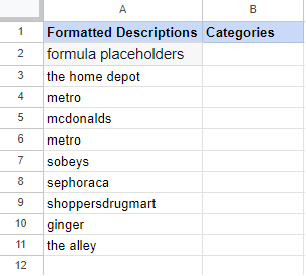
Manually categorize what these transactions should fall under. These will be the categories that you can pull insights on later.
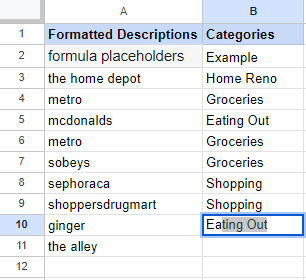
Step 4: Auto-populate Category Column
Return to the Transaction tab and drag and drop the VLookup formula from cell E3. Voila, the transactions are now categorized.
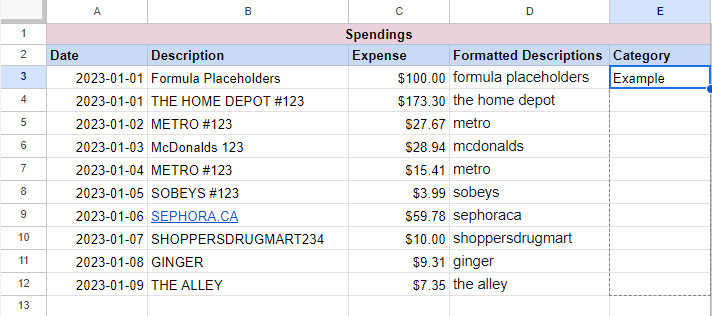
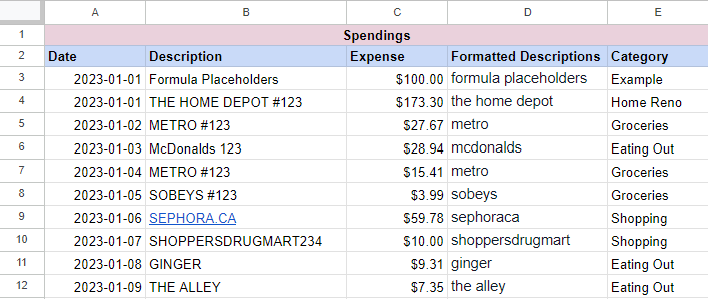
It’s not that impressive, but in the future, when you paste in new transactions from places like Metro and McDonald’s again, the categories can auto-populate because you’ve already mapped the location to a category on the VLookup Table tab.
Follow steps 1 -4 again for new places that have not been mapped as you go through monthly transactions. It will take some time to build up the mapping at first, but as time goes on, 90% of your transactions will be pre-filled with one click and tracking will take no more than 10 mins a month. The other 10% will require manual categorization as I haven’t figured out how to format trickier transactions, such as purchases from Amazon where each transaction description is unique, for example, Amazon.ca*1234JL1G01, Amazon.ca*1O1F1X12.
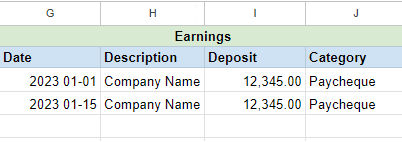
Step 5: Compiling Your Earnings
Pat yourself on the back because the hardest part is done!
On the earnings side, if you have a simple income stream, it will be straightforward. No formula is needed since it’s just as quick to manually categorize with one click and drag.
Step 6: Pivot Summaries for Insights
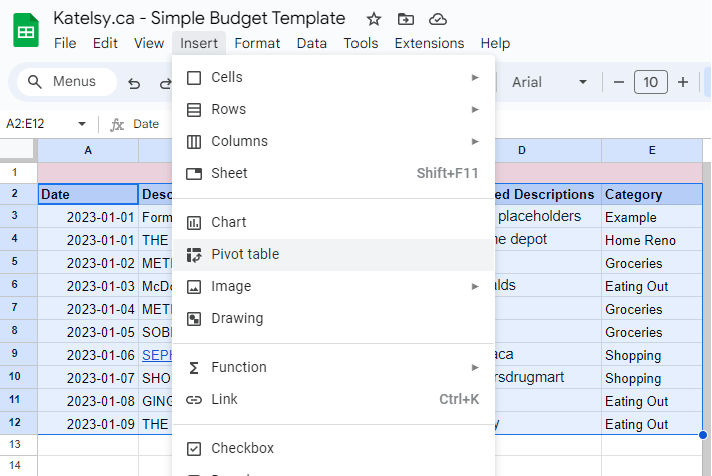
To create a pivot table, highlight cells across columns A and E and click “insert” -> “Pivot table” through the menu bar at the top. You can insert the pivot table into a new or existing sheet.
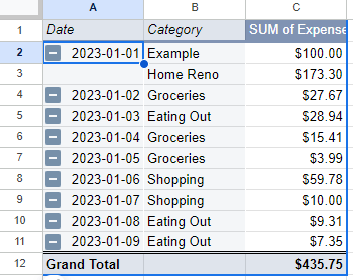
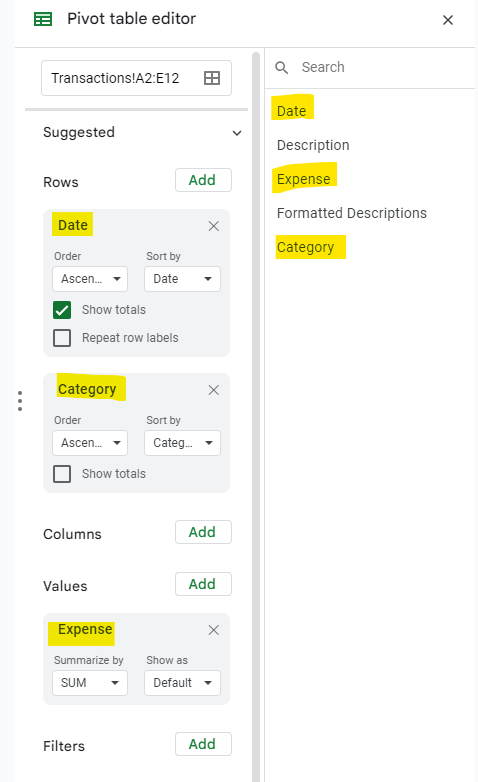
In the pivot table tab, the pivot table editor on the right-hand side is where you can play around with the values to create different summaries. For example – To create a monthly view by “category,” add Date and Category under Rows and add Expense under Values.
To customize the date view, right-click on a cell within the pivot table that contains a date to “create pivot date group”.
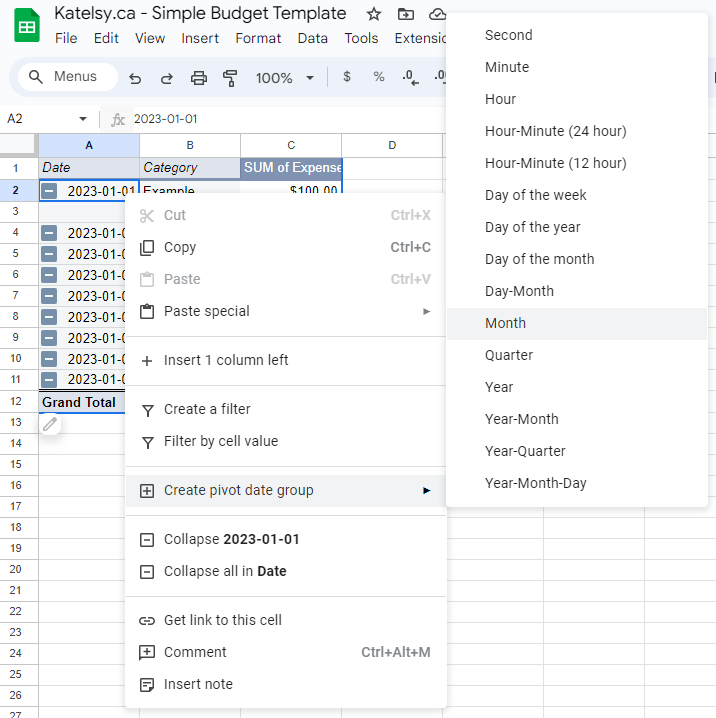
And voila, now you have a nice summary of your monthly expenses.
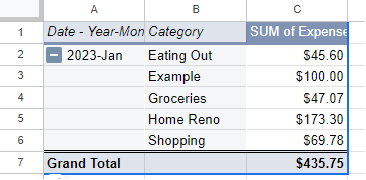
Repeat step 6 for earnings; you’ll have a nice snapshot of income and spending. With some simple math, you can calculate the income-to-savings ratio and set concrete goals of what percentage of your income you can realistically put away or spend guilt-free.
Once you’ve built up the data for a couple of months, you can also get a good sense of where your money is going and optimize your spending on certain categories. Of course, changing spending habits is sometimes easier said than done, as it requires the establishment of new habits. For example, to cut down on eating out, you’d need to cook more at home and allow additional time to buy groceries, plan meals, and cook. A “simple” change often requires a series of optimizations that take time and discipline, so don’t beat yourself up for not getting it right on the first try. Things are always more complicated than they seem!
I hope this step-by-step tutorial is helpful in getting you started on budgeting, especially if it’s something that you’ve been thinking about! Keep in mind I’m just sharing my work process, it may not be the perfect solution for you, so I highly encourage trying different templates to find what works best. In the meantime, if you have any questions or suggestions, drop me a comment down below!
Thanks for reading,
Kate Lsy


Leave a Reply